> ## Documentation Index
> Fetch the complete documentation index at: https://docs.wp-content.io/llms.txt
> Use this file to discover all available pages before exploring further.
# Theme Setup Guide
> How to prepare your theme for private updates
## Prerequisites
Before getting started, make sure you're familiar with how WordPress themes work.
This guide doesn't cover how to build a theme from scratch, it focuses on adapting an existing one to work with wp-content.io.
## Theme management
To simplify the deployment of updates and make it as seamless as possible, the theme’s release is based on the information provided in its stylesheet header.
You simply need to publish a zip file of your theme (the folder name inside the zip should match the theme’s slug). If the slug does not exist in your organization, the theme will be created; otherwise, a new version will be created.
When you publish an update, the version number needs to be unique and greater than the latest version.
## File Header requirement
This is the minimum header of your `style.css` file:
```css my-theme/style.css theme={null}
/*
Theme Name: My Theme
Version: 1.0.4
Author: Your company name
Update URI: https://registry.wp-content.io
*/
```
The name, version and author properties will be used to publish your theme data.
The `Update URI` property is mandatory because it tells WordPress to check the wp-content.io registry instead of the official repository.
## Zip structure
Here is an example of minimal theme structure:
```
my-theme/
├── index.php
└── style.css
```
## Enhance your theme details view
The following header shows the available customization options from the `style.css` file:
```css my-theme/style.css theme={null}
/*
Theme Name: My Theme
Theme URI:
Description: Fake theme
Version: 1.0.4
Author: Happy Monkey
Author URI: https://mkey.fr/
Requires at least: 6.4
Requires PHP: 8.1
Update URI: https://registry.wp-content.io
*/
```
If you include a screenshot.png file in your theme, it will be used as the theme preview, but you can also customize it from the dashboard.
## Theme preview
In the official WordPress repository, themes are usually presented with a live preview using a pre-installed demo site.
We’ve made a different choice.
Because we care deeply about the **security and confidentiality** of your code, wp-content.io does not deploy any of your files.
All your archives stay securely hosted on the CDN, without being extracted or exposed.
If you want to provide a live preview, you can define a **Preview URL** in the dashboard.
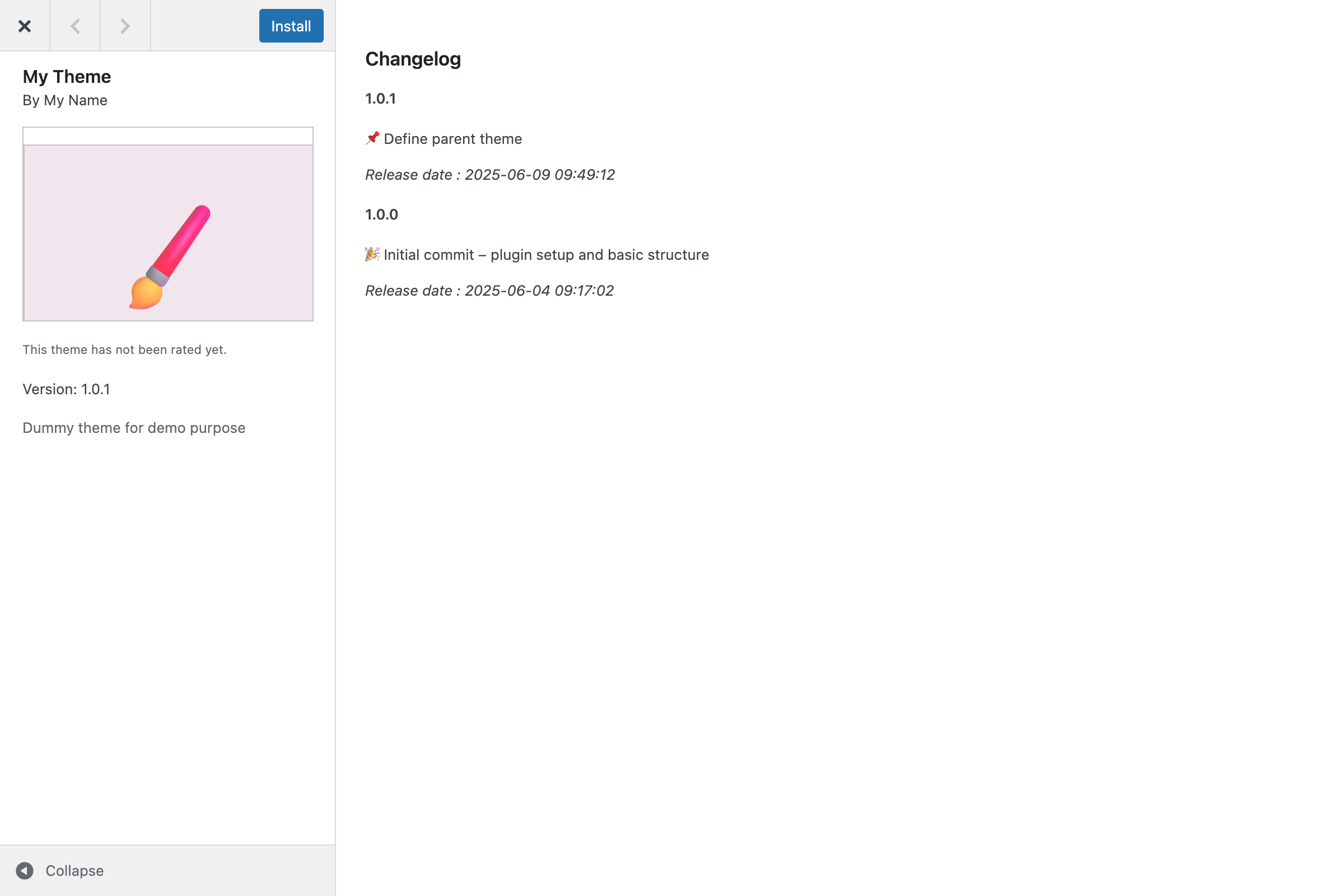
If no URL is provided, users will instead see the changelog and version history of your theme.
 ## Child themes
You can upload a child theme based on either:
* a parent theme from the official WordPress repository,
* a private theme managed by any organization (as long as the site is connected to your the organization account).
When installing a child theme, the parent theme will be installed automatically if it’s not already present on the site.
This allows you to safely distribute child themes without requiring any manual setup for the parent.
## Troubleshooting
If you're having trouble uploading your theme, here are some common issues and how to resolve them:
Make sure you're uploading a valid `.zip` file. Other formats like `.rar` or uncompressed folders are not supported.
The maximum allowed file size is 512MB. If your archive is larger, consider optimizing your theme or reducing unused assets.
Your ZIP file must contain a single folder named after your theme's slug. Inside that folder, there must be a `style.css` file that includes the required headers.
```text Example: theme={null}
my-theme/
└── style.css
```
The theme slug may already exist on the official WordPress repository, be in use by another organization, or be restricted (e.g., for premium themes).
Please choose a unique and authorized slug.
Each plan has a limit on the number of themes.
You can also manage your quota or upgrade your plan from your dashboard.
If you're on the Agency plan, you can contact support to request additional slots.
Make sure your `style.css` file includes the required headers: `Theme Name`, `Author`, `Version`, and `Update URI`.
## Child themes
You can upload a child theme based on either:
* a parent theme from the official WordPress repository,
* a private theme managed by any organization (as long as the site is connected to your the organization account).
When installing a child theme, the parent theme will be installed automatically if it’s not already present on the site.
This allows you to safely distribute child themes without requiring any manual setup for the parent.
## Troubleshooting
If you're having trouble uploading your theme, here are some common issues and how to resolve them:
Make sure you're uploading a valid `.zip` file. Other formats like `.rar` or uncompressed folders are not supported.
The maximum allowed file size is 512MB. If your archive is larger, consider optimizing your theme or reducing unused assets.
Your ZIP file must contain a single folder named after your theme's slug. Inside that folder, there must be a `style.css` file that includes the required headers.
```text Example: theme={null}
my-theme/
└── style.css
```
The theme slug may already exist on the official WordPress repository, be in use by another organization, or be restricted (e.g., for premium themes).
Please choose a unique and authorized slug.
Each plan has a limit on the number of themes.
You can also manage your quota or upgrade your plan from your dashboard.
If you're on the Agency plan, you can contact support to request additional slots.
Make sure your `style.css` file includes the required headers: `Theme Name`, `Author`, `Version`, and `Update URI`.